
axol teleop.
Before you start
- Install Axol with the one-command install on the robot’s computer. For sim, a development install is enough.
- Select and connect the device. In the control panel, press Select on the Axol or Mantis tile. The panel brings up CAN and checks the motors when it connects. On the CLI, run
axol can.setuponce. - For Axol, have a Meta Quest with the TLS certificate authorized. Mantis teleoperation needs no headset.
- For Mantis, finish the hardware setup. Tracking is not used here, so you don’t need Mantis Tracking yet.
Sim needs no CAN setup or motor check.
Authorize the TLS certificate
The VR app connects to the robot over HTTPS with a self-signed certificate. Approve it once in each headset’s browser, or the connection fails without an error.- In the VR app, press Connect.
- If the certificate isn’t approved yet, the connection fails and an Authorize certificate button appears. Tap it.
- Proceed past the warning in the popup. The app reconnects.
https://<hostname>.local:8000 or https://<local-ip>:8000 in the headset browser and proceed past the warning.
Run it
- Axol
- Mantis
1
Connect the host and robot
Open the control panel and connect the Axol Host. With Axol selected, the panel connects the robot and runs
can.setup the first time. If the tile isn’t green, press Connect on it. For sim, skip the robot connection. See Connections.2
Assign cameras (optional)
To see the camera feeds in the headset, open Axol settings → Cameras and assign the ZED cameras to the overhead, left arm and right arm slots. See Cameras.
3
Select Teleoperation and Start
Pick Teleoperation from the operation selector. Turn on sim to drive the browser visualizer instead of the robot. Press Start.
4
Connect the headset
Put on the Quest and open axol.almond.bot. Enter the host’s address, press Connect, then press Start. Press both grips together to engage the arms. See the controller layout.
--sim. This opens a visualizer at http://localhost:8002 and runs the same VR server on port 8000. Use it to check the network and tracking before you power the robot.teleop for every flag, including stiffness, gripper limits, per-joint gains and config files.Quest controller layout
These bindings are for Axol. For the Mantis gestures used in data collection, see Start gesture and recovery.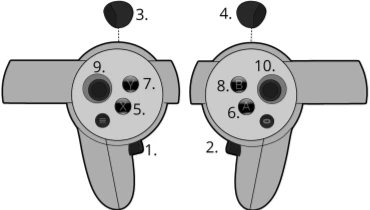
Engaging and freezing
- From rest, press both grips together to start moving the arms.
- After that, a click on one grip freezes or resumes that arm only. A frozen arm holds its pose and its grasp, which helps steady a grasped object.
- A reset, a contact stop or a dropped link disengages both arms. Press both grips again to re-engage.
--teleop.hold_to_engage). Each grip then engages the arm on its side, from rest too, and releasing the grip freezes that arm. After a forced disengage, release any grip you were still holding before it engages again.
Safety behavior
Starting
Teleoperation, data collection, DAgger, run policy and replay refuse to start while any arm joint is more than 25° from zero. Zero is the pose the arms settle into when the motors are off. The error names each joint that is out of range. Move the arms back by hand, for example underaxol gravity-comp, then start again.
Once the check passes, the arms move to zero and then out to the rest pose. collect-dagger --start_from_current_pose skips this check unless --home_on_start is also set.
Returning to rest
On the real robot, every return to rest is guarded, including the X reset and the first move at startup. If an arm meets resistance, such as a held object or a person, the move stops.- The arms go limp in a gravity-compensation hold.
- Guide them clear by hand.
- Press X to plan a new return from where they are.
--teleop.reset_torque_threshold). 0 turns the check off. Sim has no torque feedback, so it has no guard.
Contact stop while driving
You can also stop the arms when they push hard while you drive them. This check is off by default, because teleoperation often pushes on the scene on purpose. Set Teleop contact stop in Axol settings → Robot (--teleop.teleop_torque_threshold). The panel suggests 16 Nm.
When a joint pushes past the threshold for a moment, tracking disengages and the arms go limp in the same hold. Guide them clear, then press X to return to rest. This works on the real robot only.
Losing the link
If pose updates stop while the arms are engaged, the arms freeze in place after about half a second. This happens when you take off the headset, open the system menu, quit the VR app or lose the network. The arms hold that pose until you come back. Re-entering VR doesn’t move the arms. Press both grips to re-engage, and tracking resumes from where the arms are. Press X to send them to the rest pose.Stopping
When you press Stop in the control panel orCtrl+C on the CLI, the arms return to the rest pose. With Park to zero on stop on (--teleop.park_to_zero, the default), they then move to zero and hang straight down, holding their grasp. Only then do the motors turn off, so the arms don’t drop.
- Each move is guarded like a return to rest. The move to rest can take up to 6 s and the move to zero up to 10 s.
- If a move times out or hits something, the motors turn off where the arms are.
- Press
Ctrl+Cagain to stop the park where it is. - Axol skips the park in
--sim, while the arms are limp in a contact hold, and when the IK planner or the CAN feedback has failed.
Driving Jelly
On Axol on Jelly, the thumbsticks drive Jelly’s base and lift. See Jelly. Axol detects Jelly from the CAN devices that are attached.- To leave attached Jelly hardware out, turn off Jelly wheels or Jelly lift in the Robot tab, or pass
--jelly.wheels falseor--jelly.lift false. - To drive only Jelly, turn off Axol arms, or run
axol teleop --arms false.
Network tip
If VR tracking feels jittery or arrives in bursts, set these on your router or access point:
These settings stop the access point from holding packets between beacons, which causes latency spikes in VR.
Latency tuning
Teleoperation smooths the pose stream before it reaches the arms, so tracking glitches and network jitter don’t shake them. With the defaults, the arm lags your hand by about 100 to 120 ms on a clean link. Each setting below is a CLI flag or a config file field.
If teleoperation feels too slow, change one setting at a time, in this order, and test each on the real robot. The same smoothing makes contact-heavy work such as deburring or insertion feel steady.
--vr_server.interp_smooth_window_s 0.08saves 20 ms and still removes most short glitches.--teleop.ik_alpha 0.4saves a few ms with little loss of smoothness.--teleop.pose_cutoff 3.5cuts filter delay but lets more hand tremor through. Watch for joint jitter.--vr_server.interp_smooth_window_s 0turns the smoother off. Use it only over a USB connection with well-tracked controllers.
The network buffer only adds delay while the network is bursty. For network lag, a USB connection and the router settings help more than any setting here.If the headset’s Wi-Fi stalls and then delivers a backlog, the arms don’t replay the late motion. They hold, then move to your current pose when on-time frames resume. A frame counts as late when it arrives more than
--vr_server.interp_max_lag_s behind (default 0.5 s, 0 turns this off). The log shows VR pose stream arriving … late when a stall starts and VR pose stream on time again after … when it ends.Next steps
Config Parameters
Every setting for teleop, with its default.
Remote Teleop
Drive the robot over the internet from anywhere with Tailscale.
Data Collection
Record teleoperation episodes to a LeRobot dataset.